

Something went wrong while generating the report. Please try again SSRS Report
If you ever come across Something went wrong while generating the report. Please try again error in SSRS reporting in D365 finance & operations AX. Follow the below guide to debug the Root cause.
You may try to debug at various points but not everyone knows one key class of SSRS reporting where you can debug any exception very easily which will save your time
Time needed: 5 minutes
Debug SSRS
- Open class SrsPrintMgmtController
This class is the root controller for Every SSRS report, so ultimately every SSRS report needs to go through this class for showing the report
- Add a breakpoint in the run method
You need to debug the catch block in the run method of this class
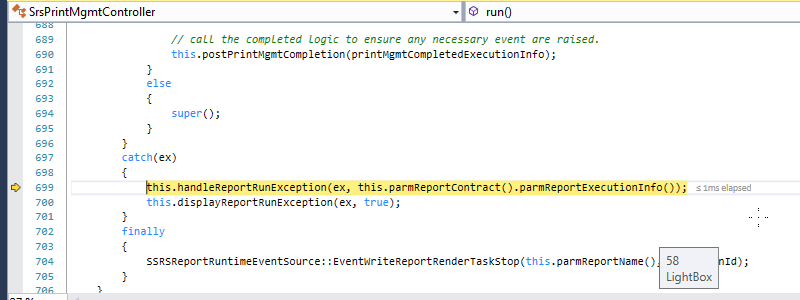
- Hover the ex variable
Ex is Exception Type and when hovered, you can check its stack trace and message property to see what exactly happened
After following the above 3 easy to understand steps, you can now easily find out what was the problem – Something went wrong while generating the report. Please try again SSRS I hope this article helped you learn how you can debug a SSRS report with minimal effort in D365 Finance & operations AX. Don’t forget to share this article.
You may also want to see our article on How to remap workspace for Visual studio team services setup in D365 Finance & operations Development machine. You can find us on facebook.

 Facebook
 Linkedin
Comments: 1
Just Specify the query in the properties of particular output menu.